Windows 桌面程式自動化測試利器 - FlaUI
 |  | 4 |  |
講到自動測試,網頁這塊已超級成熟,基本上只要 Playwright 在手,幾乎沒有不能自動化的操作。相形之下,桌面程式 Windows Form、WPF 的可自動化性就落後一大截。近年來 AI Computer Use 能力突飛猛進,局面才算有一點改變。不過,靠電腦視覺或 AI 處理 GUI 操作成本偏高,反應速度較慢,拿來處理非固定性需智慧判斷的複雜事務才有價值。像是日常排程、程式自動化測試,操作情境固定,寫支程式依預先設計好的流程快速完成,會比每次擷取畫面動用 AI 分析,來得有效率又不浪費 Token,是較聰明選擇。
桌面程式自動化操作這塊原本是 RPA 軟體的重點轄區,專業軟體如 UiPath/PowerAutomate 功能強大但授權費用可觀。如果願意學點程式動點腦筋,不要死守 No Code,靠開源程式庫我們也能做到 Windows Form / WPF 程式的自動化操作或自動測試,沒想像中困難。這篇就用「將記筆本(Notepad)新增文件並存檔作業自動化」的簡單範例來實地體驗。
FlaUI 是一套開源 .NET Windows UI 自動化函式庫,主要用於以 C# 控制及測試 Windows 桌面應用程式。它建立在 Windows UI Automation(UIA)之上,提供較易使用的 API,可搜尋視窗、按鈕、文字框、選單等 UI 元件,並執行點擊、輸入文字、選取等操作。
FlaUI 支援 Win32、WPF、WinForms 等常見 Windows 桌面技術,並利用 UIA2 與 UIA3 兩種微軟官方提供的 UI 自動化技術(註:Windows 10/11 基本上都用 UIA3)。相較於傳統的 SendKeys 或滑鼠座標操作,FlaUI 可以透過 UI 元件的 AutomationId、Name、ControlType 等屬性精準定位元件,可以建立穩定且高效率的 UI 自動化測試、RPA 與桌面應用程式整合工具。
想用 FlaUI 操作桌面程式,第一步要先了解桌面程式的結構,方法是使用 FlaUInspect 工具解析視窗物件的樹狀結構,找到要點選的按鈕、填寫文字的文字欄位所在位置,設法用名稱、型別鎖定它,再模擬滑鼠點擊、按鍵輸入,若為 .NET 物件,甚至可以直接修改內容,藉此實現用程式操作程式的自動化目標。
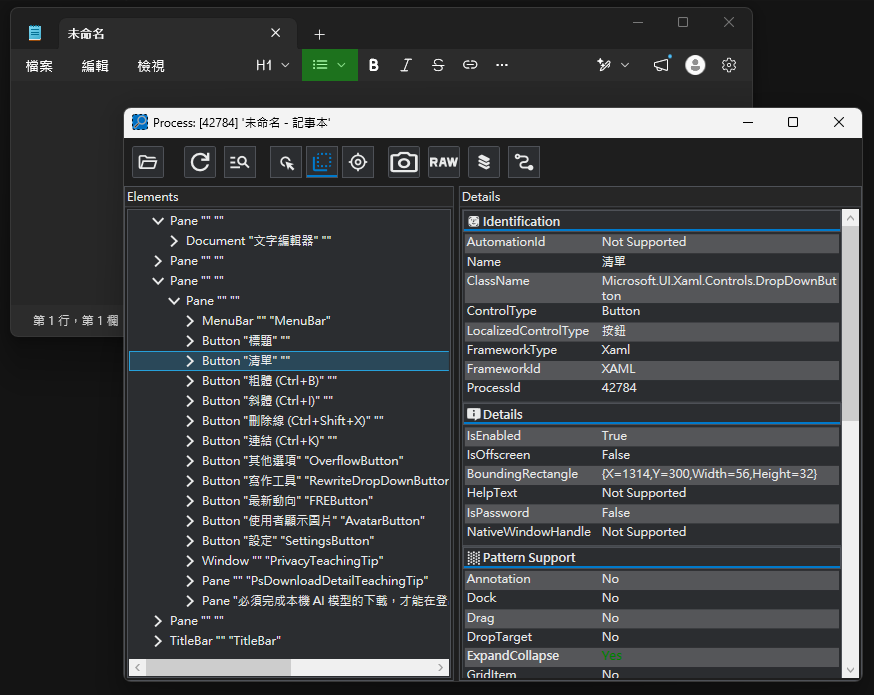
熟悉使用 FlaUInspect 工具很重要,它能幫助你在複雜樹狀結構中鎖定要操作對象,再構怎麼有效率地用程式找到它。下面介紹操作按鈕的用法:
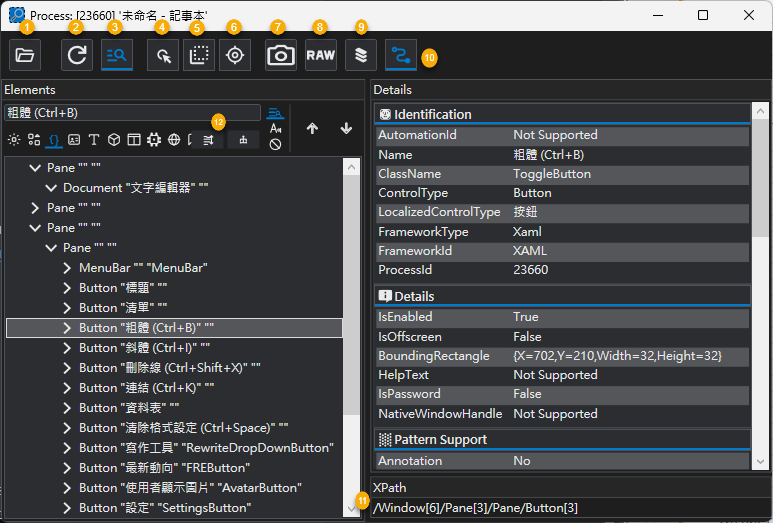
- 重新選擇要檢視的視窗
- 重新整理資料,視窗內容改變時可重新生成樹狀圖
- 元素查詢功能,啟用時會顯示 [12] 位置的操作區,可輸入文字用名稱、型別、文字等當條件搜尋元素
- Hover 定位模式,啟用時,將滑鼠移到特定元素上按 Ctrl,可自動在樹狀圖選取該元素
- Highlight 模式,啟用時,已選取元素會出現綠色矩形標示其位置及大小範圍
- Focus 模式,啟用時,會自動在樹狀圖選取取得焦點的元素
- 匯出元素的擷圖
- 將元素資料複製到剪貼簿
- 將元素完整屬性資料複製到剪貼簿
- 顯示選取元素的 XPATH (顯示在 [11] 的位置)
活用 FlaUInspect,你可以找到任何想操作的元素。
我寫了一個簡單的 Notepad 操作範例,步驟為啟動或連上執行中的 Notepad 程式,按 Ctrl-N 開新文件,用設定值跟模擬打字方式輸入一段文字,透過 FlaUI API 選取一段內容,改成粗體,將顯示模式切換成 Markdown 檢視,按 Ctrl-Shift-S 存檔,選擇存成 Markdown,指定檔案路徑,存檔完成。
練習過程發現一些眉角,在中文 Windows,打字及按鍵很容易被中文輸入法吃掉,安裝並由程式強切成純英文輸入可以避免一些困擾。若畫面元素完全固定,用 XPATH 最快,程式嘗試了不同技巧,用 Name、ControlType 甚至座標位置去找元素;另外輸入部分也試了直接設定文字欄位 Text 屬性、模擬按鍵、呼叫按鈕 .Click() 方法、移動滑鼠與點擊等多種做法,在同一範例涵蓋各式做法,方便日後應用參考。
完整程式如下:
using System;
using FlaUI.Core;
using FlaUI.UIA3; // 除非古老 Windows 程式,建議用 UIA3
using System.Diagnostics;
using FlaUI.Core.AutomationElements;
using FlaUI.Core.Input;
using FlaUI.Core.WindowsAPI;
using FlaUI.Core.Definitions;

// 檢查程式是否已執行,如果已啟動則取得其 Application,否則就啟動一份
var found = Process.GetProcessesByName("notepad").FirstOrDefault(process => process.MainWindowHandle != IntPtr.Zero);
// 如果程式尚未啟動,則啟動應用程式
var app = found == null ? Application.Launch("notepad.exe") : Application.Attach(found);
try
{
    // 初始化 UIA3 自動化物件
    using (var automation = new UIA3Automation())
    {
        // 取得主視窗(設定 5 秒逾時)
        var mainWindow = app.GetMainWindow(automation, TimeSpan.FromSeconds(5));
        if (mainWindow == null)
        {
            Console.WriteLine("無法取得主視窗。");
            return;
        }

        // 將視窗設為操作焦點
        mainWindow.Focus();

        // 按 Ctrl-N 新增文件
        Keyboard.TypeSimultaneously(VirtualKeyShort.CONTROL, VirtualKeyShort.KEY_N);
        Wait.UntilInputIsProcessed(); // UntilInputIsProcessed() 內部預設 Sleep 0.1 秒待系統處理硬體 Queue

        // 尋找文字編輯框並輸入文字
        var textBox = mainWindow.FindFirstDescendant(cf => cf.ByControlType(FlaUI.Core.Definitions.ControlType.Document))?.AsTextBox();
        if (textBox != null)
        {
            textBox.Focus();
            // 使用 Text 屬性直接設定文字最可靠,不受輸入法影響
            textBox.Text = "FlaUI 自動操作測試 ";

            textBox.Focus();
            // FlaUI Keyboard 模擬按鍵操作極易被中文輸入法干擾,建議新增英文鍵盤
            // 並在執行模擬按鍵操作前切換到英文鍵盤
            NativeMethods.SwitchTargetWindowToEnglish(mainWindow.Properties.NativeWindowHandle.Value);
            await Task.Delay(500); // 等待 1 秒,確保切換到英文鍵盤完成
            // 游標移到文字結尾
            Keyboard.Type(VirtualKeyShort.END);
            Wait.UntilInputIsProcessed();
            Keyboard.Type(" Hello, World!");
            Wait.UntilInputIsProcessed(TimeSpan.FromSeconds(2));

            // 選取最前面13個字
            // 方法一:按著 Shift 連按方向鍵選取文字,實測易受輸入法影響
            // 方法二:使用 Text.Pattern
            textBox.Focus();
            var pattern = textBox.Patterns.Text.Pattern;
            var range = pattern.DocumentRange;
            // 複製一份範圍,準備進行選取操作
            var selection = range.Clone();
            // 將選取範圍的結尾移到最前方,準備選取文字
            selection.MoveEndpointByRange(TextPatternRangeEndpoint.End, selection, TextPatternRangeEndpoint.Start);
            // 將選取範圍的結尾移動到最前方後,再向後移動 13 個字元,完成選取操作
            selection.MoveEndpointByUnit(TextPatternRangeEndpoint.End, TextUnit.Character, 13);
            selection.Select();

            // 點擊粗體按鈕
            // 找尋 Name 為 "粗體 (Ctrl+B)" 的按鈕並點擊
            var boldButton = mainWindow.FindFirstDescendant(cf => cf.ByName("粗體 (Ctrl+B)"))?.AsButton();
            if (boldButton == null)
            {
                throw new Exception("找不到粗體按鈕。");
            }
            // 點擊粗體按鈕
            boldButton.Click();

            // 切換成 Markdown 語法模式
            // 嘗試另一種做法,找到狀態列(座標在最下方 Panel)的第三個控制項
            var panes = mainWindow.FindAllChildren(cf => cf.ByControlType(FlaUI.Core.Definitions.ControlType.Pane));
            // 找出 Y 座標最大的 Panel,通常是最下方的狀態列
            var statusBar = panes.OrderByDescending(p => p.BoundingRectangle.Y).FirstOrDefault();
            if (statusBar != null)
            {
                var innerPannel = statusBar.FindFirstChild(cf => cf.ByControlType(FlaUI.Core.Definitions.ControlType.Pane));
                if (innerPannel == null) throw new Exception("找不到內層 Panel。");
                var button = innerPannel.FindFirstChild(cf => cf.ByControlType(FlaUI.Core.Definitions.ControlType.Button));
                if (button == null) throw new Exception("找不到按鈕。");
                // 嘗試模擬滑鼠點擊操作
                var clickablePoint = button.Properties.ClickablePoint.Value;
                Mouse.MoveTo(clickablePoint);
                Mouse.Click();
            }
            Wait.UntilInputIsProcessed();

            // 按 Ctrl-Shift-S 存檔
            Keyboard.TypeSimultaneously(VirtualKeyShort.CONTROL, VirtualKeyShort.SHIFT, VirtualKeyShort.KEY_S);
            Wait.UntilInputIsProcessed();
            // 尋找名為「另存為 Markdown 檔案」的 Button
            var saveAsMarkdownButton = mainWindow.FindFirstDescendant(cf => cf.ByName("另存為 Markdown 檔案"))?.AsButton();
            if (saveAsMarkdownButton == null)
            {
                throw new Exception("找不到「另存為 Markdown 檔案」按鈕。");
            }
            saveAsMarkdownButton.Click();
            Wait.UntilInputIsProcessed(TimeSpan.FromMilliseconds(500));
            // 找到名為「另存新檔」的對話框,並進行後續操作
            var saveAsDialog = mainWindow.FindFirstDescendant(cf => cf.ByName("另存新檔"))?.AsWindow();
            if (saveAsDialog == null)
            {
                throw new Exception("找不到「另存新檔」對話框。");
            }
            // 找到名為「檔案名稱」的 Edit 輸入框
            var fileNameEdit = saveAsDialog.FindFirstDescendant(cf => cf.ByName("檔案名稱:").And(cf.ByControlType(ControlType.Edit)))?.AsTextBox();
            if (fileNameEdit == null)
            {
                throw new Exception("找不到「檔案名稱」輸入框。");
            }
            // 輸入檔案名稱
            fileNameEdit.Text = Path.Combine(Path.GetTempPath(), $"test-{Guid.NewGuid().ToString().Substring(0, 8)}.md");
            Wait.UntilInputIsProcessed();

            // 點擊「儲存」按鈕
            var saveButton = saveAsDialog.FindFirstDescendant(cf => cf.ByName("存檔(S)"))?.AsButton();
            if (saveButton == null)
            {
                throw new Exception("找不到「存檔」按鈕。");
            }
            saveButton.Click();
            Wait.UntilInputIsProcessed();

        }
    }
    // 若 Notepad 為新啟動,結束後關閉
    if (found == null)
    {
        app.Close();
    }
}
catch (Exception ex)
{
    Console.WriteLine($"發生錯誤: {ex.Message}");
}
切英文輸入法的輔助方法我請 AI 寫,一併附上:
using System;
using System.Runtime.InteropServices;

public static class NativeMethods
{
    // Loads a specified keyboard layout identifier
    [DllImport("user32.dll", SetLastError = true, CharSet = CharSet.Auto)]
    public static extern IntPtr LoadKeyboardLayout(string pwszKLID, uint Flags);

    // Sends a message to a window's message queue asynchronously
    [DllImport("user32.dll", CharSet = CharSet.Auto)]
    public static extern bool PostMessage(IntPtr hWnd, uint Msg, IntPtr wParam, IntPtr lParam);

    // Windows Message constant for changing input language
    public const uint WM_INPUTLANGCHANGEREQUEST = 0x0050;

    // Flags for LoadKeyboardLayout
    public const uint KLF_ACTIVATE = 0x00000001;

    // Language Identifier for United States English (en-US)
    public const string KBD_US_ENGLISH = "00000409";

    public static void SwitchTargetWindowToEnglish(IntPtr windowHandle)
    {
        if (windowHandle == IntPtr.Zero)
            throw new ArgumentException("Invalid window handle.");

        // 1. Load the US English layout into memory and get its handle
        IntPtr englishLayout = NativeMethods.LoadKeyboardLayout(NativeMethods.KBD_US_ENGLISH, NativeMethods.KLF_ACTIVATE);

        if (englishLayout != IntPtr.Zero)
        {
            // 2. Post the request message to the specific application window
            // wParam: 0 = fallback allowed, 1 = strict match layout
            // lParam: The loaded layout handle
            NativeMethods.PostMessage(windowHandle, NativeMethods.WM_INPUTLANGCHANGEREQUEST, IntPtr.Zero, englishLayout);

            // 3. Give Windows a small window of time to process the message queue
            System.Threading.Thread.Sleep(200);
        }
    }
}
驗收成果,成功!
就醬,自動控制桌面程式就不再是難事囉~
Learn how to automate Windows desktop apps with FlaUI, an open-source .NET UI Automation library. This practical Notepad example demonstrates element inspection, text input, formatting, keyboard handling, Markdown mode, and file saving.
Comments
# by Ike
// 按 Ctrl-N 新增文件 是否應在 Keyboard.TypeSimultaneously … 之上? await Task.Delay(500); // 等待 0.5 秒,確保新文件已建立 是否應在 Keyboard.TypeSimultaneously … 之下?
# by m
看起來可以用來自動登入股票看盤軟體。 電腦定時自動開機,自動開啟看盤程式,自動登入帳號與密碼.
# by Jeffrey
to Ike,程式調整後註解忘了同步更新,謝謝提醒。
# by yoyo
讓我想到AutoIt跟以前的按鍵精靈XD