兩分鐘做出 RAG 文件檢索 AI 應用網站
 |  | 0 |  |
分享這陣子發現的好東西。
即便當今 LLM 的 Context Window 已可長達百萬 Token 等級,還是未必能一次塞入所有知識,即便可以,這種暴力玩法浪費 Token 又沒效率,還可能因上下文過長導致模型找錯重點出現幻覺,因此,Retrieval Augmented Generation (RAG 檢索增強生成) 架構仍有其不可取代性。
RAG 系統會事先為文件建立向量索引,使用者詢問時先查詢索引找出相關度最高的一批資料,再交由模型彙整判斷,通常能給出較精準的回答,更進一步,還能提供參考來源以利人工核對確認,大大降低 AI 瞎扯誤事的機率。
建立 RAG 系統需要串 AI 模型、處理 Embedding、搞向量資料庫,瑣事不少。 .NET 開發者的好消息 - 微軟有個 AI 應用程式專案範本,不用兩分鐘便可建立一個簡單 RAG 互動式查詢網站,它可作為改寫擴建的基礎,依實際需求打造理想中的 AI 應用系統。
要使用 AI 應用程式專案範本的起手式需先透過 dotnet new install 安裝,之後即可新增 AI 應用程式專案,相關使用官方文件:使用 AI 應用程式範本延伸模組建立 .NET AI 應用程式來與自訂數據聊天有詳細說明。
dotnet new install Microsoft.Extensions.AI.Templates
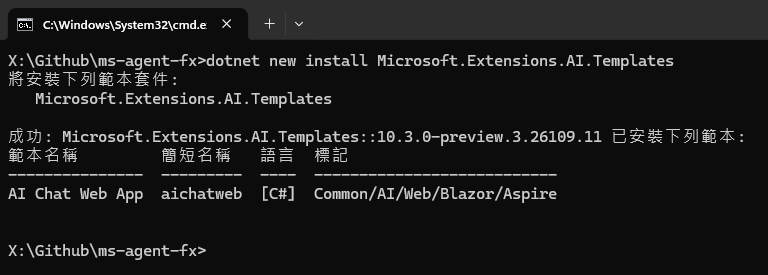
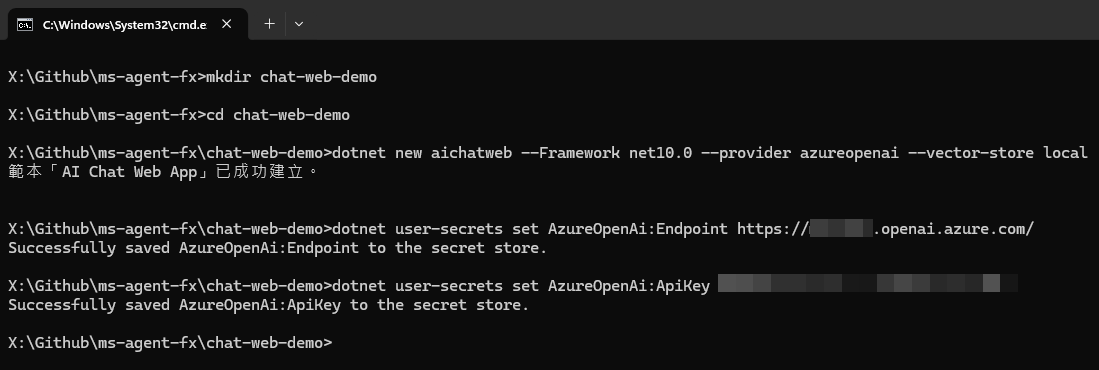
裝好範本後,使用 dotnet new aichatweb 建立新專案 (亦可使用 Visual Studio 或 VSCode 建立專案),provider 決定連接的模型,其支援 Github 模型、AOAI (Azure OpenAI)、OpenAI、Ollama... 等。這篇文章使用 Azure OpenAI (AOAI) GPT-5.2-Chat 模型並以 .NET CLI 建立專案,其他模型可在官方文件切換模型看說明( Github Models、AOAI、OpenAI、Ollama,要看 Visual Studio、VSCode 新建專案的做法也可點選文件的頁籤切換。
註:官方教學是 dotnet user-secrets 另外保存 EndPoint 及 ApiKey,不放在專案資料夾,以免不小心推上 Github 或版控主機而外流,沒用過 user-secrets 的同學可參考這篇介紹。
mkdir chat-web-demo
cd chat-web-demo
dotnet new aichatweb --Framework net10.0 --provider azureopenai --vector-store local
dotnet user-secrets set AzureOpenAi:Endpoint <your-Azure-OpenAI-endpoint>https://my-aicg.openai.azure.com/
dotnet user-secrets set AzureOpenAi:ApiKey <your-Azure-OpenAI-apikey>
另外補充,aichatweb 是個具彈性,可大可小的專案範本,除了 --provider 選模型,--vector-store 參數可以選 local (使用 SQLite)、qdrant (用 Docker 容器跑 Qdrant 資料庫) 或 azure-ai-search (使用 Azure AI Search) 處理文件檢索;--aspire (true|false) 則可決定是否套用 Aspire 雲端原生架構。其系統架構圖如下,前端則是用 ASP.NET Core Blazor 打造:(看來我要強迫跟 Blazor 培養感情惹 😄)
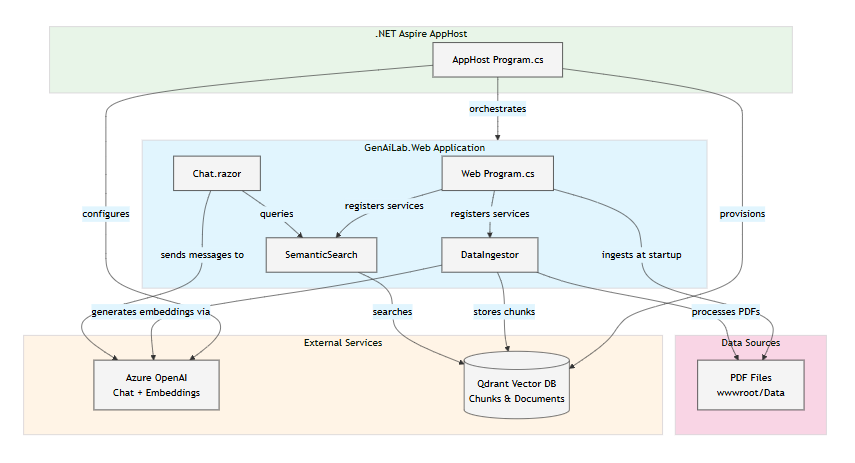
這是我的 .NET RAG Hello World,為求簡化,向量資料庫我使用 local,不套用 Aspire,單一專案搞定。(使用 Aspire 模式會有三個專案)
範本預設的 Program.cs 如下,我只改了兩處: new ApiKeyCredential(azureOpenAIKey) 改用 API Key 及 chatClient 模型從 gpt-4o 改成 gpt-5.2-chat:
using System.ClientModel.Primitives;
using Azure.Identity;
using Microsoft.Extensions.AI;
using OpenAI;
using chat_web_demo.Components;
using chat_web_demo.Services;
using chat_web_demo.Services.Ingestion;
using System.ClientModel;

var builder = WebApplication.CreateBuilder(args);
builder.Services.AddRazorComponents().AddInteractiveServerComponents();

// You will need to set the endpoint and key to your own values
// You can do this using Visual Studio's "Manage User Secrets" UI, or on the command line:
//   cd this-project-directory
//   dotnet user-secrets set AzureOpenAI:Endpoint https://YOUR-DEPLOYMENT-NAME.openai.azure.com
var azureOpenAIEndpoint = new Uri(new Uri(builder.Configuration["AzureOpenAI:Endpoint"] ?? throw new InvalidOperationException("Missing configuration: AzureOpenAi:Endpoint. See the README for details.")), "/openai/v1");
var azureOpenAIKey = builder.Configuration["AzureOpenAI:ApiKey"] ?? throw new InvalidOperationException("Missing configuration: AzureOpenAi:ApiKey. See the README for details.");
#pragma warning disable OPENAI001 // OpenAIClient(AuthenticationPolicy, OpenAIClientOptions) and GetResponsesClient(string) are experimental and subject to change or removal in future updates.
var azureOpenAi = new OpenAIClient(
    new ApiKeyCredential(azureOpenAIKey), // 改用 ApiKeyCredential
    new OpenAIClientOptions { Endpoint = azureOpenAIEndpoint });

var chatClient = azureOpenAi.GetResponsesClient("gpt-5.2-chat").AsIChatClient();
#pragma warning restore OPENAI001

var embeddingGenerator = azureOpenAi.GetEmbeddingClient("text-embedding-3-small").AsIEmbeddingGenerator();

var vectorStorePath = Path.Combine(AppContext.BaseDirectory, "vector-store.db");
var vectorStoreConnectionString = $"Data Source={vectorStorePath}";
builder.Services.AddSqliteVectorStore(_ => vectorStoreConnectionString);
builder.Services.AddSqliteCollection<string, IngestedChunk>(IngestedChunk.CollectionName, vectorStoreConnectionString);

builder.Services.AddSingleton<DataIngestor>();
builder.Services.AddSingleton<SemanticSearch>();
builder.Services.AddKeyedSingleton("ingestion_directory", new DirectoryInfo(Path.Combine(builder.Environment.WebRootPath, "Data")));
builder.Services.AddChatClient(chatClient).UseFunctionInvocation().UseLogging();
builder.Services.AddEmbeddingGenerator(embeddingGenerator);

var app = builder.Build();

// Configure the HTTP request pipeline.
if (!app.Environment.IsDevelopment())
{
    app.UseExceptionHandler("/Error", createScopeForErrors: true);
    // The default HSTS value is 30 days. You may want to change this for production scenarios, see https://aka.ms/aspnetcore-hsts.
    app.UseHsts();
}

app.UseHttpsRedirection();
app.UseAntiforgery();

app.UseStaticFiles();
app.MapRazorComponents<App>()
    .AddInteractiveServerRenderMode();

app.Run();
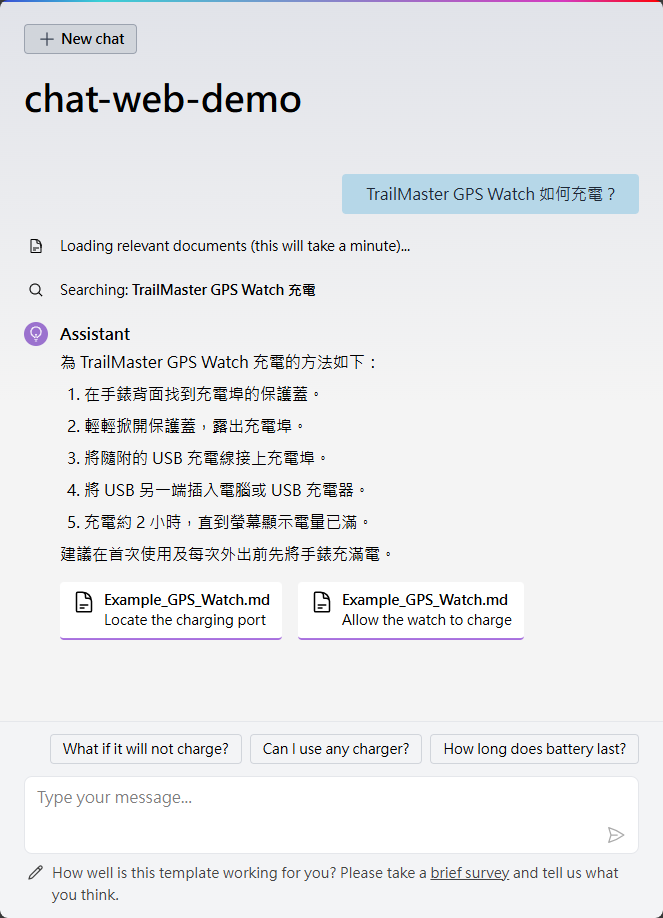
專案範本在 wwwroot\Data 下有兩個範例文件:Example_Emergency_Survival_Kit.pdf 及 Example_GPS_Watch.md,第一次查詢前系統會自動為文件建立索引,之後就便可以用自然語言查詢文件相關內容:
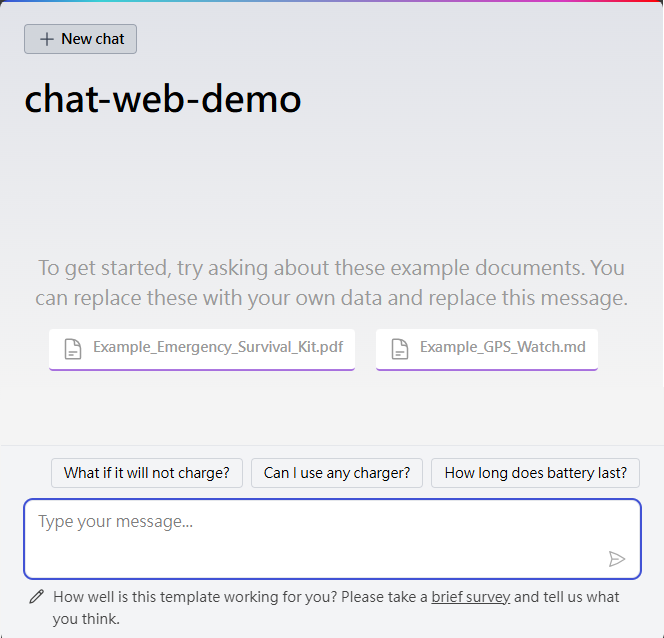
而查詢效果就像大家想像的那樣,用中文發問就回答中文,下方有連結指向參考來源:
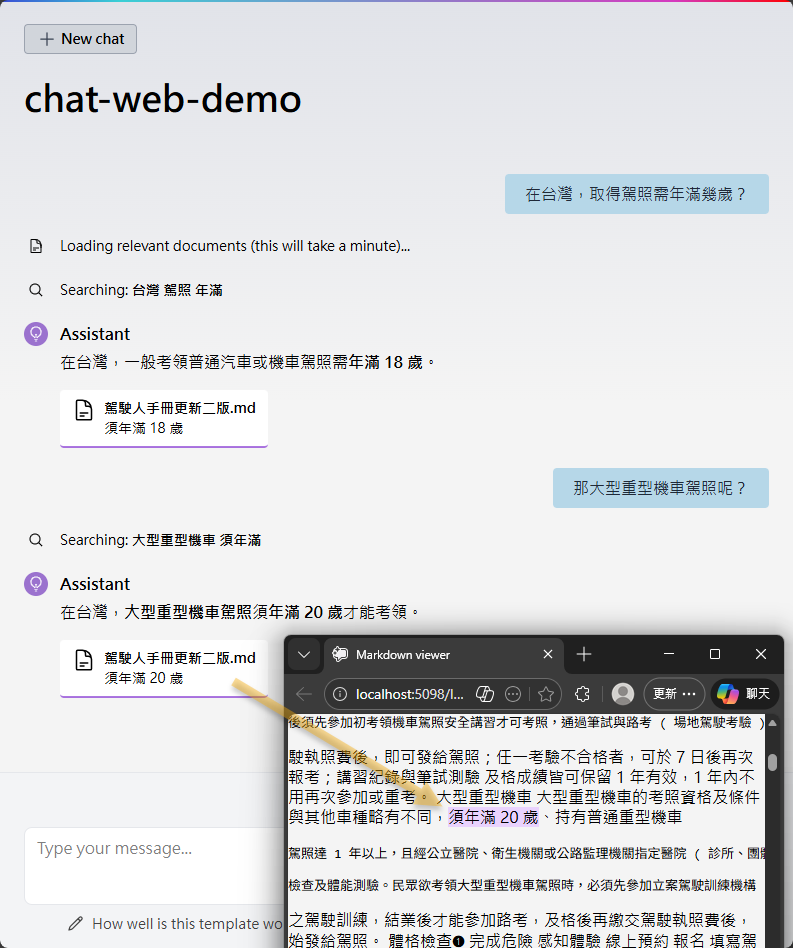
我加碼測試之前 RAG 玩過的公路局駕駛人手冊,但這個 44MB PDF 建立索引時會出錯,我決定將 PDF 轉 Markdown 避開問題先把實驗做完。實測查詢 OK,同一 Session 可記憶問答內容,參考來源也會正確指向文件出處,效果不錯。
如此,我們就可快速做出一個 RAG 互動查詢網頁介面,網站略做修改亦可拿來跑 AI Agent 等應用,是很實用的 AI 應用網站雛型,後面我打算試一些花式玩法,屆時再分享。
Introduces Microsoft’s .NET AI chat web template that lets developers build a working RAG web app in minutes. Demonstrates setup with Azure OpenAI, local vector storage, and document ingestion, showing how to quickly prototype reliable, source-backed AI search and chat experiences.
Comments
Be the first to post a comment