超彈性網站 HTTP 傳輸分析工具 - Titanium Web Proxy
 |  | 0 |  |
江湖走跳射茶包,好用的 HTTP Proxy 不可少! (參考:人人都需要一個 HTTP proxy 來 debug)
早年我愛用的 Fiddler 後來只剩商業版,知名的 Burp Suite 也是商業軟體用途受限,評估下來,mitmproxy 是最佳接班人,甚至進階應用需要寫程式,mitmproxy 也有支援。(注意:其依賴的開源程式庫 WinDivert 可能被部分防毒軟體判定為惡意程式)
身為 .NET 開發者,最近我發現一個更好的選擇 - Titanium Web Proxy 開源專案,純 C# 原生打造的 HTTP Proxy,支援 HTTP/2、HTTP/3 (QUIC),內含 TLS 憑證替換,效能不輸 .NET 官方版 Reverse Proxy YARP。
使用方法很簡單,開個 .NET 新專案,dotnet package add Titanium.Web.Proxy 引用程式庫,寫幾行程式碼,就能打造一個 100% 客製化的 HTTP Proxy 伺服器,用來監聽往來 HTTP/HTTPS 傳輸,必要時還能修改 HTTP 請求及回應內容。
以下是個簡單練習,用 ProxyServer 類別監聽 127.0.0.1 8000 Port 扮演 HTTP/HTTPS Proxy,實作 BeforeRequest 事件記錄 HTTP 客戶端存取的 URL、BeforeResponse 事件針對特定 URL 偷改 HTTP 回應內容。
using System;
using System.Net;
using System.Threading.Tasks;
using Microsoft.Extensions.Logging;
using Titanium.Web.Proxy;
using Titanium.Web.Proxy.EventArguments;
using Titanium.Web.Proxy.Models;

using var proxyServer = new ProxyServer();

// 內建的 Console 記錄器會先把訊息放進佇列(Bounded Channel 有容量上限),再由背景執行緒逐一取出顯示,
// 呼叫 LogInformation 不會卡住當下處理連線的執行緒。
proxyServer.Logging.MinimumLevel = LogLevel.Information;

proxyServer.BeforeRequest += OnRequest;
proxyServer.BeforeResponse += OnResponse;

var endPoint = new ExplicitProxyEndPoint(IPAddress.Loopback, 8000, decryptSsl: true);
proxyServer.AddEndPoint(endPoint);

// 建立並信任用來解密 HTTPS 流量的根憑證,範圍限於目前的使用者
proxyServer.CertificateManager.EnsureRootCertificate(
    userTrustRootCertificate: true,
    machineTrustRootCertificate: false);

proxyServer.Start();
proxyServer.Logger.LogInformation("Proxy listening on 127.0.0.1:8000. Press Enter to stop.");
await Console.In.ReadLineAsync();
proxyServer.Stop();

Task OnRequest(object sender, SessionEventArgs e)
{
    proxyServer.Logger.LogInformation("{Url}", e.HttpClient.Request.Url);
    return Task.CompletedTask;
}

async Task OnResponse(object sender, SessionEventArgs e)
{
    proxyServer.Logger.LogInformation("{Url}", e.HttpClient.Request.Url);
    if (string.Equals(e.HttpClient.Request.Url, "https://blog.darkthread.net/", StringComparison.OrdinalIgnoreCase))
    {
        var body = await e.GetResponseBodyAsString();
        var newBody = body.Replace("<title>黑暗執行緒", "<title>錯字魔人的家");
        e.SetResponseBodyString(newBody);
    }
}
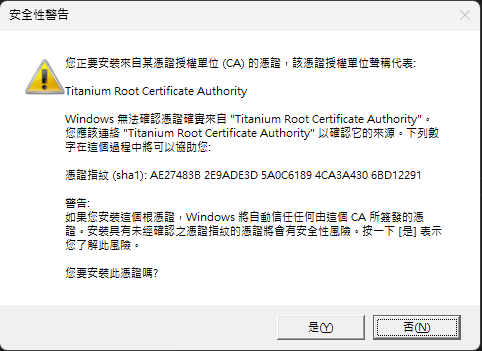
在本機執行會觸發自動安裝 Titanium Web Proxy 的 CA 根憑證:
【資安提醒】安裝並信任 CA 憑證代表特定軟體可以檢視 HTTPS 加密傳輸內容,此一動作影響重大,請確認憑證來源可靠並接受背後可能的風險,建議要知道自己在做什麼再動手。
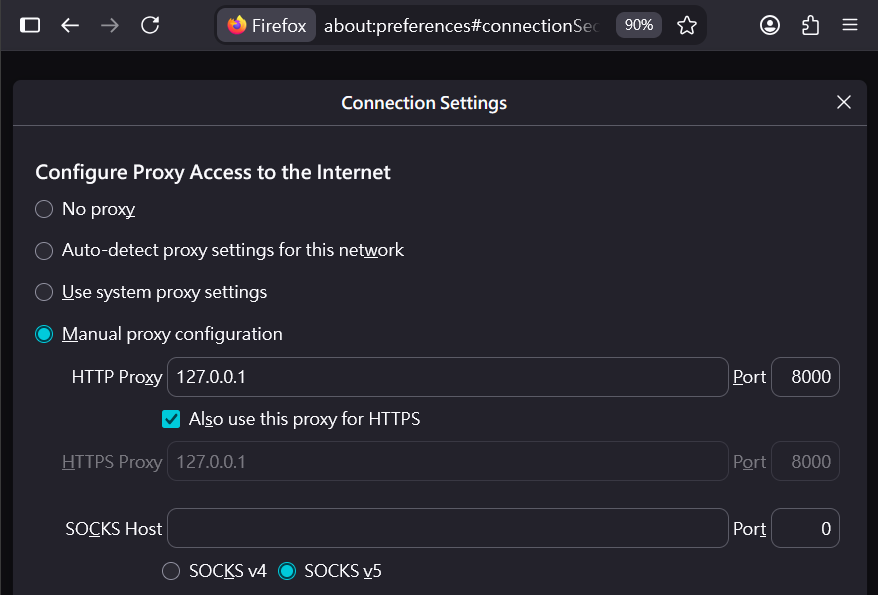
Edge/Chrome 設 HTTP Proxy 需修改作業系統層的設定,會影響 Windows 上的所有軟體,我決定用 Firefox 來設定:
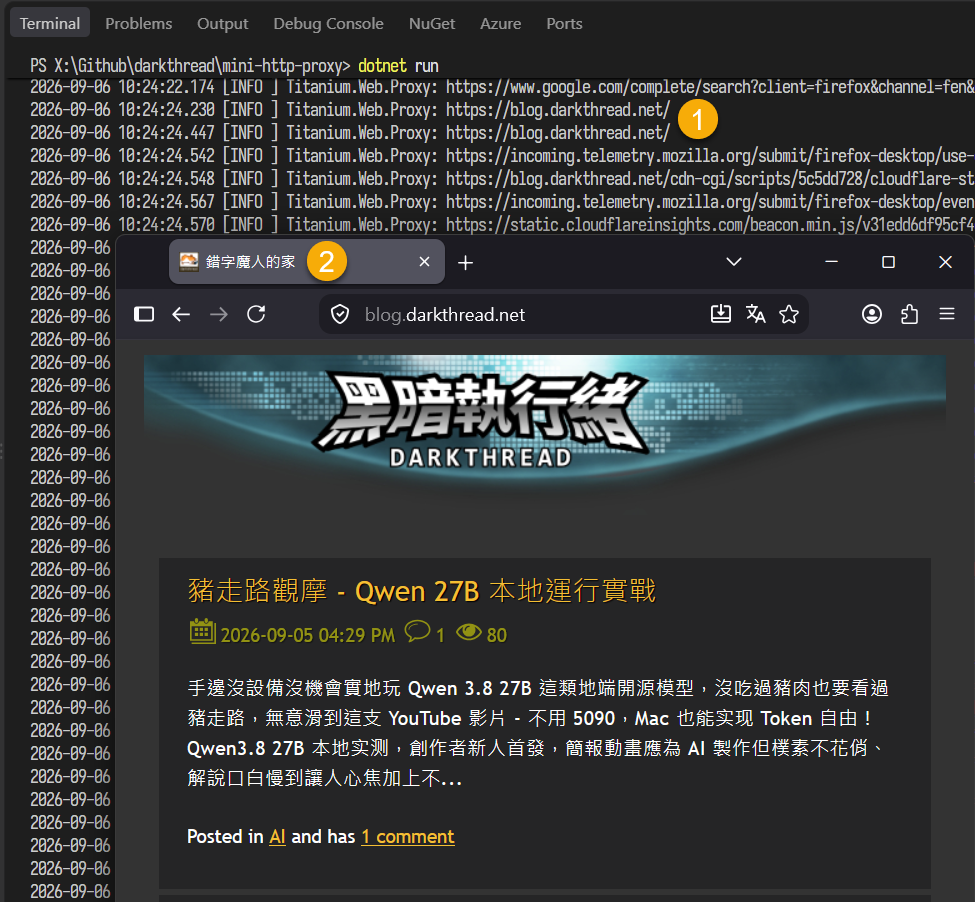
設定 Firefox 使用 127.0.0.1 8000 Port 做為 HTTP 及 HTTPS Proxy 後,瀏覽我的部落格,網頁可正常瀏覽,程式則會即時顯示瀏覽器所有 HTTP 請求 [1],而部落格的標題也被改成它真正的名字 [2]。(笑) 測試成功~
元件非常簡單易用,可以客製擴充的彈性近乎無限,改不動時還可以改原始碼,是進階 HTTP Proxy 應用的好選擇~
補充:除了 Titanium.Web.Proxy 程式庫,這個開源專案還包含 Titanium.Cli CLI 工具、Titanium Inspector (類似 mitmproxy 的 GUI 偵察工具) 以及 Titanium.Plus (儀錶板、監控套件),但要注意程式庫及 CLI 是 MIT 授權,至於 Inspector 與 Plus 則是非商用授權,只限個人研究及非營利組織使用。
A quick guide to building a customizable HTTP/HTTPS proxy in .NET with Titanium Web Proxy, including TLS interception, request logging, response modification, browser setup, security cautions, and licensing notes.
Comments
Be the first to post a comment