實作語音交談 AI Agent 介面 - 2026 MAF 版
 |  | 0 |  |
之前玩過 結合 AI 模型做家電聲控,當時試了三種版本:
- 使用 Windows SAPI 進行語音識別與合成
- Whisper 語音轉文字 + LLM + 微軟類神經合成語音
- OpenAI Realtime API
對我來說,第二種做法技術含量最高,一次涵蓋 STT (Speech-To-Text 語音轉文字)、AI 模型工具整合、TTS (Text-To-Speech 文字轉語音) 三個主題,做一次實驗,三種技術一次體驗。兩年前我的程式是用 .NET 開發配 Whisper + GPT 4o + DNN ,而 2026 的今天,技術背景有些改變:
- 微軟推出 Microsoft Agent Framework,為 Agent 應用提供統一且簡潔的 .NET 開發框架構。
- OpenAI 在 2025 年推出三款新的語音 AI 模型,包括 gpt-4o-transcribe、gpt-4o-mini-transcribe 以及 gpt-4o-mini-tts,前二者提供比 Whisper 更高的語音識別準確率。參考,至於 gpt-4o-mini-tts 則加入了模擬語氣聲調功能,稍早也實測過
決定再做一次實驗,用 2026 年初的模型與技術再練習一次,整理出專案範例做為相關應用的參考。
先看模型計價部分,gpt-4o-mini-transcribe 為每百萬 Token 輸入 $1.25、輸出 $5,gpt-4o-mini-tts 則為每百萬 Token 輸入 $0.6、輸出 $12。至於語音資料的 Token 計算方式,OpenAI 的轉換比例約為輸入語音每分鐘 2667 Token (每秒 44.4 個)、輸出每分鐘 4000 Token (每秒 66.7 個)。換算成台幣金額,每分鐘輸入約新台幣 0.1 元 (轉譯文字則每 1000 Token 約 0.15 元 NTD),輸出語音每分鐘約 1.48 NTD。
麥克風收音與語音播放部分,繼續使用 NAudio 程式庫,API 介面直覺好懂,功能完整,用起來相當順手。(其實更重要的是 AI 跟它很熟,這年頭,寫程式必須得尊重 AI 的想法與選擇,畢竟主要動手的是它 😄)
核心流程如下,寫過幾次 MS Agent Framework (MAF),對其模式也漸漸上手了,超手式是建立 AOAI / OpenAI / Foundry 客戶端,取應用取得不同端點的特定用途客戶端(例如:GetAudioClient、GetBatchClient、GetChatClient、GetEmbeddingClient、GetImageClient、GetOpenAIFileClient... 參考)。IChatClient可 AsAIAgent()、加入 Tool、使用 Session 自動管理交談歷史,輕鬆寫出 AI Agent。這個版本我先用傳統 Console 流程實作,但為了操作更流暢,我沒選擇用 Console.Read*() API 接受按鍵,而是用 Win32 API 偵測按鍵狀態,我選了一顆平日不會用到的鍵 Scroll Lock (ScrLk),做成按下開始錄音鬆開結束。錄音跟語音轉換與回答我決定拆成獨立類別,AI Coding 時代程式不用自己寫,但開發者對架構有主導權,不同人寫的 Code 還是能保有個人風格,除非你從頭到尾不看 Code 對程式碼沒有自己想法,那是另一個門派了。
using System.ClientModel;
using Azure.AI.OpenAI;
using NAudio.Wave;
using System.Runtime.InteropServices;
using OpenAI.Chat;
using Microsoft.Extensions.AI;
using System.ComponentModel;

DotNetEnv.Env.Load(); // 支援從 .env 檔載入環境變數

var endPoint = Environment.GetEnvironmentVariable("STT-ENDPOINT") ??
    throw new InvalidOperationException("STT-ENDPOINT environment variable is not set.");
var key = Environment.GetEnvironmentVariable("STT-APIKEY") ??
    throw new InvalidOperationException("STT-APIKEY environment variable is not set.");

// 起手式:建立 AOAI / OpenAI / Foundry 客戶端,取應用取得不同端點的特定用途客戶端
var azureOpenAIClient = new AzureOpenAIClient(new Uri(endPoint), new ApiKeyCredential(key));

var audioClient = azureOpenAIClient.GetAudioClient("gpt-4o-mini-transcribe"); // 語音轉文字
var ttsClient = azureOpenAIClient.GetAudioClient("gpt-4o-mini-tts"); // 文字轉語音

// 對話模型以 Agent 方式使用,並加入匯率查詢工具
var httpClient = new HttpClient();
httpClient.DefaultRequestHeaders.UserAgent.ParseAdd("dotnet-httpclient/1.0");
var chatAgent = azureOpenAIClient.GetChatClient("gpt-5.4-mini").AsAIAgent(
        instructions: "你是 AI 助理,使用zh-tw回答,回應限純文字不要包含 Markdown 及 Emoji,盡可能簡短。",
        tools: new []
        {   // 定義一個工具,讓模型能查詢匯率
            // TODO: 此處省略參數驗證、錯誤處理等細節
            AIFunctionFactory.Create(
                async ([Description("基礎貨幣代碼,例如 'TWD'、'USD'。")] string baseCurrency) =>
                    await (await httpClient
                     .GetAsync($"https://api.exchangerate-api.com/v4/latest/{baseCurrency}"))
                     .Content.ReadAsStringAsync(),
                name: "get_exchange_rate",
                description: "查詢指定基礎貨幣的即時匯率,格式為 JSON,.rates 為轉換幣別及匯率字典。")
        }
    );

// 使用 P/Invoke 監控鍵盤狀態,實現按鍵開始錄音,鬆開結束錄音的功能
[DllImport("user32.dll")]
static extern short GetAsyncKeyState(int vKey);
const int VK_SCRLK = 0x91; // 控制鍵選擇沒人在用的 Scroll Lock 鍵
bool wasDown = false; // 追蹤按鍵狀態,避免重複觸發

// 錄音部分與語音處理拆成獨立類別
var recorder = new Recorder();
var processor = await AudioProcessor.CreateAsync(audioClient, ttsClient, chatAgent);
// 錄音完成事件加入後續處理,使用 Task.Run 確保不阻塞錄音流程
recorder.RecordingCompleted += data => Task.Run(async () => await processor.ProcessAsync(data));

Console.WriteLine("按下 ScrLk 鍵開始錄音,鬆開結束,按 ESC 結束程式...");
while (true)
{
    // 檢查是否按下 Scroll Lock 鍵,並根據狀態啟動或停止錄音
    bool isDown = (GetAsyncKeyState(VK_SCRLK) & 0x8000) != 0;

    if (isDown && !wasDown)
        recorder.Start();
    else if (!isDown && wasDown)
        recorder.Stop();

    wasDown = isDown;
    Thread.Sleep(20);
    // 同時監聽 ESC 鍵,允許使用者隨時退出程式
    if (Console.KeyAvailable)
    {
        var keyInfo = Console.ReadKey(intercept: true);
        if (keyInfo.Key == ConsoleKey.Escape)
        {
            Console.WriteLine("退出程式...");
            recorder.Stop();
            processor.Cancel();
            break;
        }
        else
        {
            // ESC 以外任意鍵可中斷語音處理、播放
            processor.Cancel();
        }
    }
}
語音轉文字、聊天回應、文字轉語音的部分如下,過程發現有兩個重要功能 - 語音轉文字時加入自訂 Prompt、文字轉語音時以 Streaming 方式接收,目前 Azure.AI.OpenAI 2.9.0-beta.1 還不支援,預計要 2.10 才會加入,我這個學新技術總是慢半拍進場的老人,難得覺得自己衝太快,呵~
using Microsoft.Agents.AI;
using NAudio.Wave;
using OpenAI.Audio;

class AudioProcessor
{
    AudioClient _sttClient;
    AudioClient _ttsClient;
    AIAgent _chatAgent;
    AgentSession _session;
    CancellationTokenSource _cts = new();

    public static async Task<AudioProcessor> CreateAsync(AudioClient sttClient, AudioClient ttsClient, AIAgent chatAgent)
    {
        var processor = new AudioProcessor
        {
            // 輸入語音轉文字、文字轉語音客戶端,以及聊天 Agent
            _sttClient = sttClient,
            _ttsClient = ttsClient,
            _chatAgent = chatAgent,
            // 預先建立 Agent Session,記憶交談過程
            _session = await chatAgent.CreateSessionAsync()
        };
        return processor;
    }

    public void Cancel() => _cts.Cancel();

    public async Task ProcessAsync(byte[] data)
    {
        // 處理前重建 CancellationTokenSource,確保能即時取消當前作業
        // 使用 Interlocked.Exchange 操作替換 CancellationTokenSource,避免 Race Condition
        var oldCts = Interlocked.Exchange(ref _cts, new CancellationTokenSource());
        oldCts.Dispose();

        Print("錄音完成,解析中...", color: ConsoleColor.Green);
        try
        {
            using var audioStream = new MemoryStream(data);
            var result = await _sttClient.TranscribeAudioAsync(audioStream,
                "audio.wav",
                new AudioTranscriptionOptions
                {
                    // 註:2.10 將支援 Prompt,目前為 2.9.0 beta 還沒有
                }, _cts.Token);
            var transcription = result.Value.Text;
            if (string.IsNullOrWhiteSpace(transcription))
            {
                Print("[無法辨識語音內容]", color: ConsoleColor.Yellow);
                return;
            }
            Print(transcription, "辨識結果", ConsoleColor.Cyan);
            var chatResp = await _chatAgent.RunAsync(transcription, _session, cancellationToken: _cts.Token);
            var chatRespText = chatResp.Text;
            Print(chatRespText, "聊天回應", color: ConsoleColor.Magenta);
            Print("語音合成中...", color: ConsoleColor.Green);
            // Azure OpenAI 2.10 將支援 Streaming
            var ttsResult = await _ttsClient.GenerateSpeechAsync(chatRespText,
                // 參考 https://blog.darkthread.net/blog/openai-tts-voice-samples/
                GeneratedSpeechVoice.Nova, // 指定語音角色,或使用預設值
                new SpeechGenerationOptions
                {
                    SpeedRatio = 1.5f, // 設定語速加快 50%
                }, cancellationToken: _cts.Token);
            // 取得 Stream 後直接使用 NAudio 播放,資料不落地
            using var ttsAudioStream = ttsResult.Value.ToStream();
            using var audioFileReader = new Mp3FileReader(ttsAudioStream);
            using var outputDevice = new WaveOutEvent();
            outputDevice.Init(audioFileReader);
            outputDevice.Play();
            // 等待播放結束,可接受中斷播放
            while (outputDevice.PlaybackState == PlaybackState.Playing)
            {
                if (_cts.Token.IsCancellationRequested)
                {
                    outputDevice.Stop();
                    Print("播放已取消", color: ConsoleColor.Yellow);
                    break;
                }
                await Task.Delay(500);
            }
        }
        catch (OperationCanceledException)
        {
            Console.WriteLine("[已取消]");
        }
    }

    private static void Print(string text, string title = "", ConsoleColor color = ConsoleColor.White)
    {
        var prevColor = Console.ForegroundColor;
        Console.ForegroundColor = color;
        if (!string.IsNullOrEmpty(title))
            Console.WriteLine($"{title}: {text}");
        else
            Console.WriteLine(text);
        Console.ForegroundColor = prevColor;
    }
}
附上一小段錄影展示,gpt-4o-mini-transcribe 的速度與精準度讓人印象深刻:
完整範例專案已放上 Github,需要的同學請自取參考。
同場加映 AI Coding 心得:
- AI Coding 時仍可配合 Review 程式碼並依自己的想法進行類別拆分、寫法調整,讓程式碼保有個人或團隊風格,提升易讀性及可維護性。
- 遇到 MS Agent Framework 這種超新,不存在於 AI 模型現有知識的框架,MS Learn MCP 超好用,發問題時 Copilot 提示加入
@microsoft-learn請 AI 去查 MS Learn 文章與範例,效果好到讓人耳目一新!!
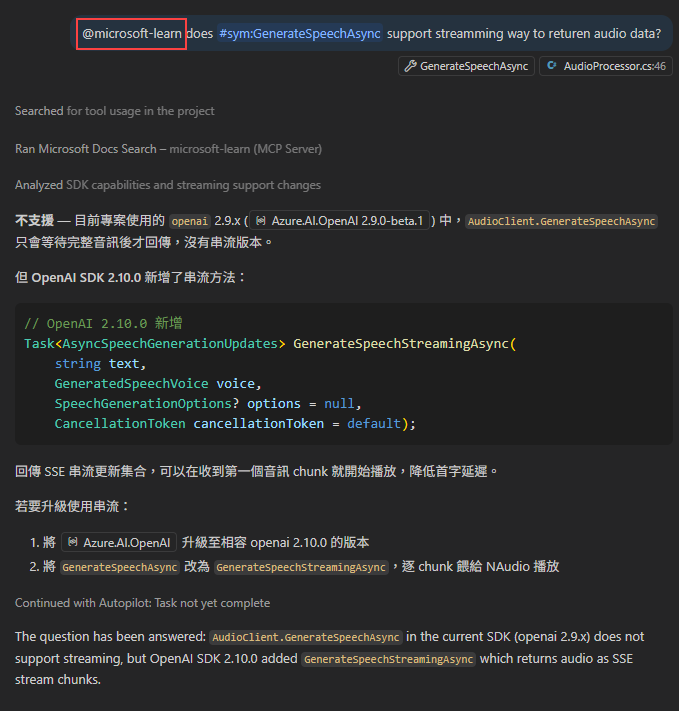
(貼圖才發現短短一行有兩個錯字,「不打錯字會死」重症病患已確診 orz) - 我現在養成習慣,程式寫完會下一句
#codebase review the project and provide suggestions請 AI 幫忙 Review 給建議,從中學到許多正確嚴謹的程式寫法,受益匪淺,AI 是學習程式開發的絕佳導師無誤。(如果你還想學習的話)
Revisits voice-controlled home automation using modern 2026 tools: Microsoft Agent Framework, OpenAI mini speech models, and .NET. Demonstrates an end-to-end STT → AI Agent → TTS pipeline with practical cost analysis, architecture notes, and a working console prototype.
Comments
Be the first to post a comment