使用羅技賽車方向盤操作程式
 |  | 0 |  |
之前在臉書社群拾荒撿了網友不要的古董級的初代羅技賽車方向盤(WingMan Formula 黃色款,1998 年出生,含油門煞車踏板),想說接 ESP32 用它玩無線遙控車應該很好玩。
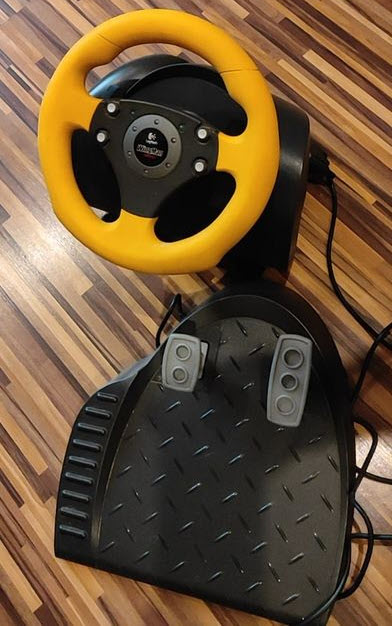
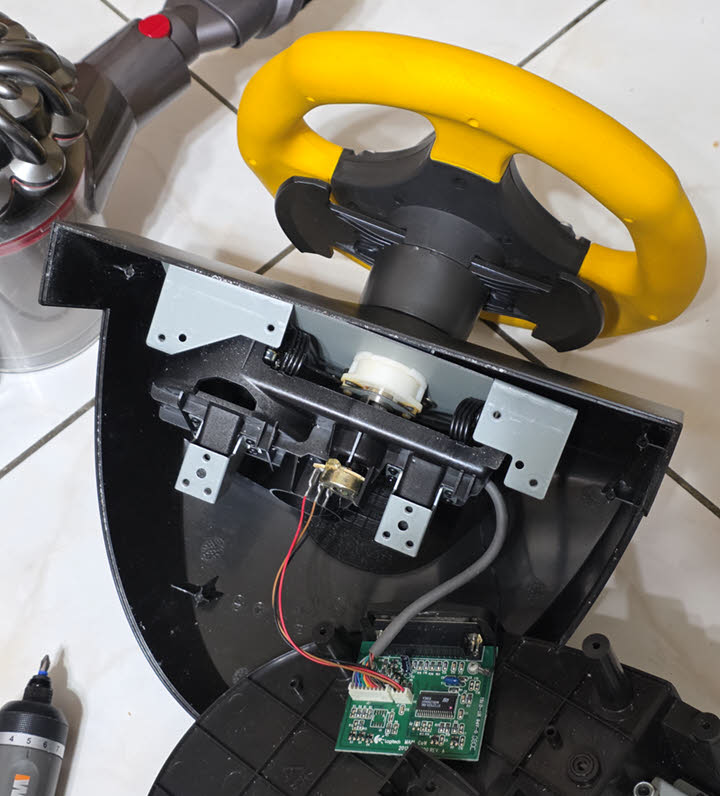
但到手後也沒測試過就丟在角落吃灰擱了好幾年,最近斷捨離重新盤點,看它挺佔空間便想檢查一下,若是壞掉的就丟掉。搖動方向盤聽到內部有零件咔咔聲,偶爾會從縫隙掉出黃色塑膠小碎塊,推測是某個零件脆化碎化,拆開沒看到,可能整個零件已粉碎消失,至少不會再咔咔響跟掉噴裝,呵。
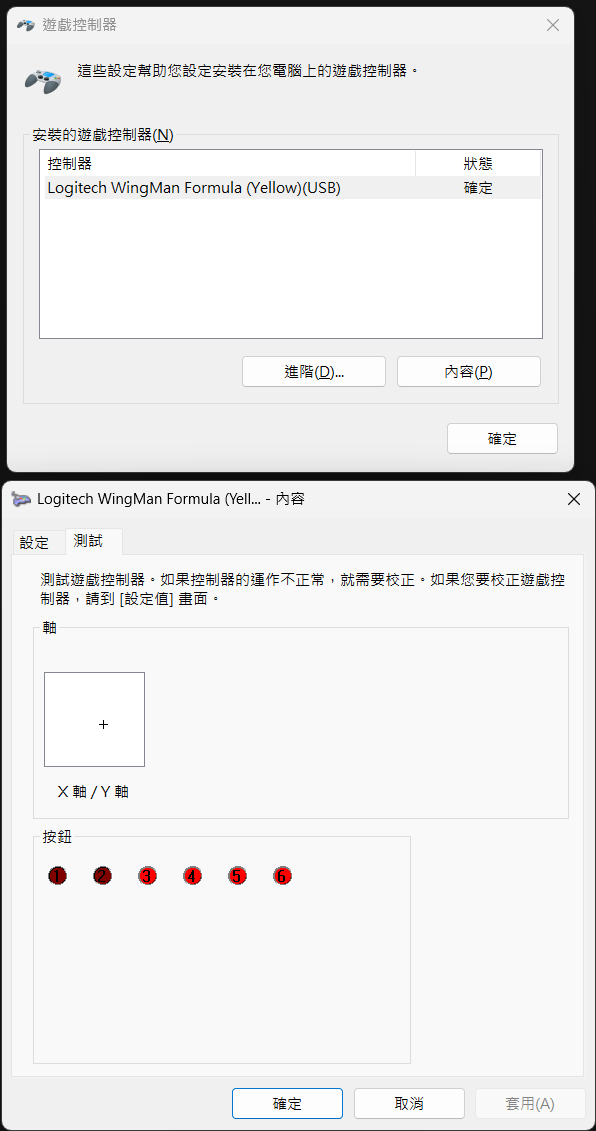
方向盤有附 25 PIN 序列埠接頭轉 USB,插上電腦,令人驚喜的是 Windows 11 居然可直接認出它 (但換個角度,連 30 年前的裝置都要繼續支援,Windows 的時代包袱真大 😛),用主控台 joy.cpl 管理測試,進退檔撥片無法使用(不確定是壞了還是需要特殊方法讀取),方向盤油門煞車跟四顆鈕都正常。
那可以用它玩賽車嗎?問了 AI,發現居然有個 GPL 開源賽車遊戲 - Speed Dreams,用我的 i5 12 代內顯也能跑,就醬,沒多花半毛錢,我體驗了用專用方向盤玩賽車遊戲的感覺,哈~ (但瞧這駕駛技術,很明顯我不配擁有它 XD)
那麼,我可以寫支 C# 程式用它當輸入嗎?Windows Runtime(WinRT)API 內建型別 Windows.Gaming.Input.RawGameController 方便存取遊戲控制器輸入,透過 GetCurrentReading() 可讀取按鈕、開關及軸等三種陣列,就這麼簡單。
// 使用 Windows.Gaming.Input.RawGameController 可直接讀取系統內建 HID 驅動之裝置
using Windows.Gaming.Input;

// 鎖定 Logitech WingMan Formula (Yellow) 的 Vendor ID 與 Product ID
const ushort LogitechVid = 0x046D;
const ushort WingmanFormulaYellowPid = 0xC202;

RawGameController? wheel = null;
using var found = new ManualResetEventSlim();
void TryPick(RawGameController c)
{
    // 限定 Logitech WingMan Formula (Yellow)
    if (c.HardwareVendorId == LogitechVid && c.HardwareProductId == WingmanFormulaYellowPid)
    {
        wheel = c;
        found.Set();
    }
}
// 先掛事件,允許 foreach 後加入的裝置有機會被捕捉,若還是沒找到就等三秒
RawGameController.RawGameControllerAdded += (_, c) => TryPick(c);
foreach (var c in RawGameController.RawGameControllers) TryPick(c);
if (!found.Wait(TimeSpan.FromSeconds(3)) || wheel is null)
{
    Console.WriteLine("找不到 WingMan Formula (Yellow)。目前偵測到的控制器:");
    foreach (var c in RawGameController.RawGameControllers)
        Console.WriteLine($"  {c.DisplayName}  VID={c.HardwareVendorId:X4} PID={c.HardwareProductId:X4}");
    return;
}

var buttons = new bool[wheel.ButtonCount];
var switches = new GameControllerSwitchPosition[wheel.SwitchCount];
var axes = new double[wheel.AxisCount];

Console.Clear();
Console.CursorVisible = false;
Console.WriteLine($"{wheel.DisplayName}");
Console.WriteLine($"Axes={wheel.AxisCount}  Buttons={wheel.ButtonCount}  Switches={wheel.SwitchCount}   (Ctrl+C 結束)");
Console.WriteLine();

var running = true;
Console.CancelKeyPress += (_, e) => { e.Cancel = true; running = false; };

while (running)
{
    // 讀取目前的按鈕、開關與軸狀態,有可能為快照值未更新,可由 timestamp 判斷是否新資料
    ulong timestamp = wheel.GetCurrentReading(buttons, switches, axes);

    Console.SetCursorPosition(0, 3);

    // 軸的原始值範圍是 0.0 ~ 1.0;方向盤通常是 Axis 0,另轉成 -1 ~ +1 方便看中心
    for (int i = 0; i < axes.Length; i++)
    {
        double v = axes[i];
        string bar = new string('#', (int)Math.Round(v * 40)).PadRight(40, '.');
        Console.WriteLine($"Axis {i}: {v,6:0.000}  ({v * 2 - 1,6:+0.000;-0.000})  [{bar}]");
    }

    // 按鈕編號以 1 起算,與 joy.cpl 的顯示一致
    Console.Write("Buttons: ");
    for (int i = 0; i < buttons.Length; i++)
        Console.Write(buttons[i] ? $"[{i + 1}] " : $" {i + 1}  ");
    Console.WriteLine();

    for (int i = 0; i < switches.Length; i++)
        Console.WriteLine($"Switch {i}: {switches[i],-12}");

    Console.WriteLine($"Timestamp: {timestamp}        ");

    Thread.Sleep(16); // 約 60 Hz 輪詢
}

Console.CursorVisible = true;
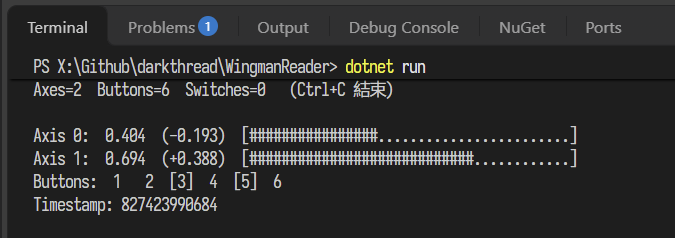
再來,就是一句話叫 AI 寫個用方向盤控制的賽車遊戲了~ (順便試了先前做的 Photino + Vue Skill)
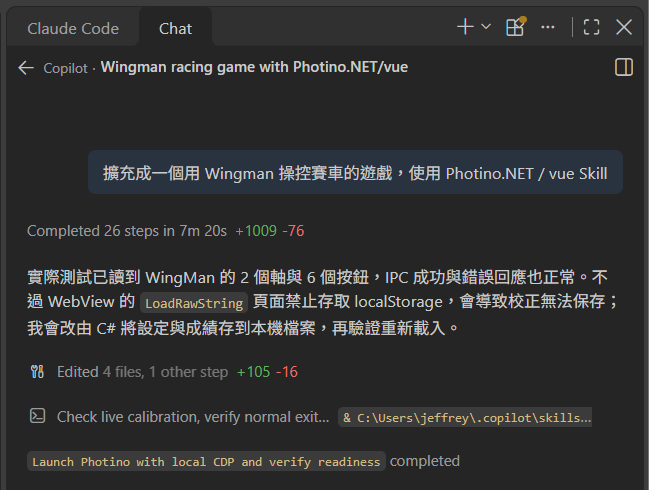
花了大約 15 分鐘,驗收!
Revived a 1998 Logitech WingMan Formula Yellow wheel rescued from a Facebook giveaway. Windows 11 recognized it instantly. I tested it with joy.cpl, raced in the open-source Speed Dreams, read its inputs in C# via RawGameController, and had AI build a wheel-controlled racing game in 15 minutes.
Comments
Be the first to post a comment