網頁顯示地圖之免費開源解決方案
 |  | 0 |  |
上回玩網頁地圖已是 14 年前的事,我的認知停留在申請 API Key 使用 Google Map 程式庫的做法,後來的印象是 Google Map 限制愈來愈多,雖然仍有免費額度,但要綁信用卡才能用。
最近在 Side Project 想搞圖地圖相關應用,十多年來物換星移,滄海桑田,決定在 2026 年重新 Survey 一下網頁地圖寫法。
AI Coding 時代,我還是每天在學寫程式,但做法截然不同,從「先爬文後寫程式」變成了「先寫程式再爬文」,搞懂程式怎麼寫的目標沒有變,呵。
說完我想抓使用者所在地理位置並顯示在網頁地圖的願望,Github Copilot 只花了五分鐘就完成用 Leaflet JavaScript 程式庫構建地圖模型配合 OpenStreetMap 開源圖資 的基本雛型,不需要註冊、不用 API Key,就像 Google Map 一樣在網頁顯示地圖,還能拖拉縮放。後續加上了一些我覺得常用的基本操作,像是滑鼠移動時即時取得對應經緯度、放上及移除自訂大頭針(Marker)等,用這個範例當成未來要在專案實作網頁地圖的起手式,順便分享給大家參考。
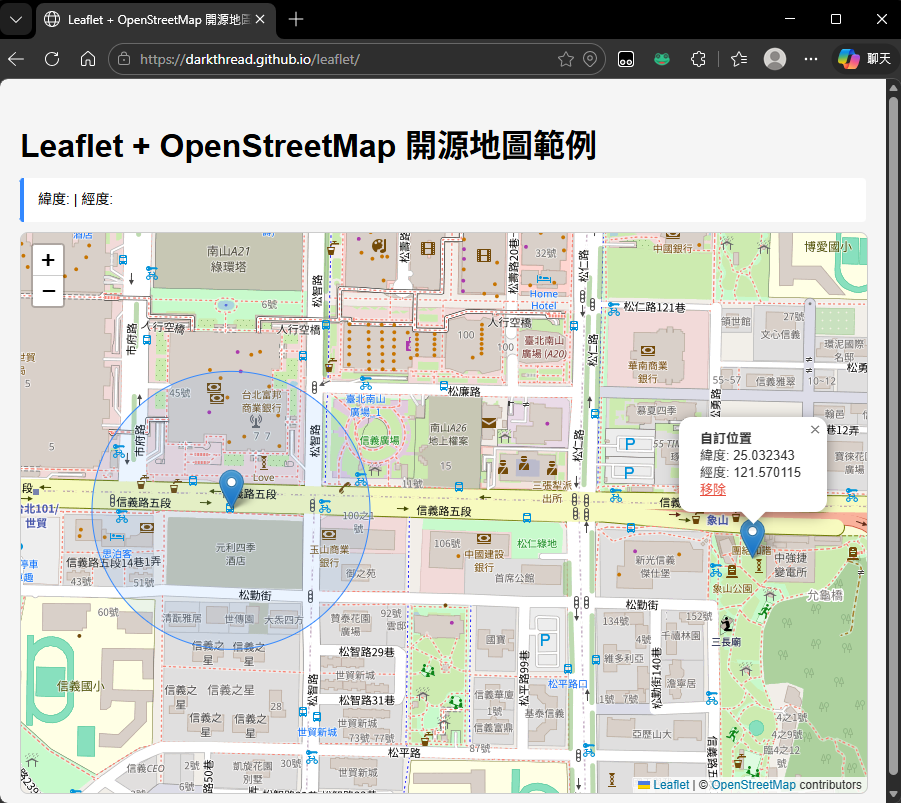
實際操作起來像這樣:
以上全部的邏輯用不到 150 行 JavaScript 就可以寫完,相關說明我寫在註解裡了,也放了一份線上展示給大家試玩。
const app = Vue.createApp({
data() {
return {
positionInfo: {},
errMessage: '',
markers: []
};
},
methods: {
// 顯示座標資訊
showCoords(latitude, longitude) {
if (latitude === undefined || longitude === undefined) {
this.positionInfo = {};
return;
}
this.positionInfo = {
latitude: latitude.toFixed(6),
longitude: longitude.toFixed(6)
};
}
}
});
const vm = app.mount('#app');
// 初始化Leaflet地圖,設定預設中心點和縮放等級
const map = L.map('map').setView([20, 0], 2);
// 加入OpenStreetMap圖磚,註明版權資訊及設定最大縮放等級
L.tileLayer('https://{s}.tile.openstreetmap.org/{z}/{x}/{y}.png', {
attribution: '© <a href="https://www.openstreetmap.org/copyright">OpenStreetMap</a> contributors',
maxZoom: 19
}).addTo(map);
// 使用者位置標記及範圍圈
let userMarker = null;
let userAccuracyCircle = null;
// 縮放等級簡單對照表
const zoomLevels = {
WordMap: 2,
LargeCountry: 5,
RegionState: 8,
City: 11,
Neiberhood: 13,
Street: 15,
Block: 17,
Building: 19
}
function showLocation(position) {
// 測試經緯度: 25.033964, 121.564468 (台北101)
const { latitude, longitude, accuracy } = position.coords;
// 移除舊的使用者位置標記和精確度圈
if (userMarker) map.removeLayer(userMarker);
if (userAccuracyCircle) map.removeLayer(userAccuracyCircle);
// 加入範圍圈,半徑為精確度值
userAccuracyCircle = L.circle([latitude, longitude], {
radius: accuracy,
color: '#3388ff',
fillColor: '#3388ff',
fillOpacity: 0.1,
weight: 1
}).addTo(map);
// 加入使用者位置標記並顯示資訊
userMarker = L.marker([latitude, longitude])
.addTo(map)
.bindPopup(
`<strong>現在位置</strong><br>
緯度: ${latitude.toFixed(6)}<br>
經度: ${longitude.toFixed(6)}<br>
精確度: ±${Math.round(accuracy)} m`
)
.openPopup();
// 飛至指定位置並設定適當縮放等級
map.flyTo([latitude, longitude], zoomLevels.Block, { duration: 1.5 });
vm.showCoords(latitude, longitude);
}
function handleError(error) {
const messages = {
1: 'Permission denied. Please allow location access.',
2: 'Position unavailable. Unable to determine location.',
3: 'Request timed out. Try again.'
};
vm.errMessage = messages[error.code] || 'An unknown error occurred.';
}
// 透過瀏覽器 Geolocation API 取得使用者位置(需經使用者同意)
function getLocation() {
if (!navigator.geolocation) {
vm.errMessage = 'Geolocation is not supported by your browser.';
return;
}
vm.errMessage = 'Detecting your location…';
navigator.geolocation.getCurrentPosition(showLocation, handleError, {
enableHighAccuracy: true,
timeout: 10000,
maximumAge: 0
});
}
// 滑鼠移動時顯示對應座標
map.on('mousemove', (e) => {
vm.showCoords(e.latlng.lat, e.latlng.lng);
});
map.on('mouseout', () => {
vm.showCoords();
});
// 點擊地圖時放置標記
map.on('click', (e) => {
const { lat, lng } = e.latlng;
const m = L.marker([lat, lng])
.addTo(map)
.bindPopup(
`<strong>自訂位置</strong><br>
緯度: ${lat.toFixed(6)}<br>
經度: ${lng.toFixed(6)}<br>
<a href="#" onclick="removeClickMarker(this); return false;" style="color:#e74c3c;">移除</a>`
)
.openPopup();
vm.markers.push(m);
});
function removeClickMarker(link) {
const popup = link.closest('.leaflet-popup');
const markerEl = popup?._leaflet_id != null ? popup : null;
// 找到對應的標記並移除
for (let i = vm.markers.length - 1; i >= 0; i--) {
const m = vm.markers[i];
if (m.isPopupOpen()) {
map.removeLayer(m);
vm.markers.splice(i, 1);
break;
}
}
}
// 取得使用者位置並移動地圖到該位置
getLocation();
至於 Leaflet 的使用介紹,推薦阿油的這篇 Leaflet-輕量且易懂易用的互動地圖,對於 Leaflet 用法及台灣可用圖資選項講得很詳細,值得一讀。
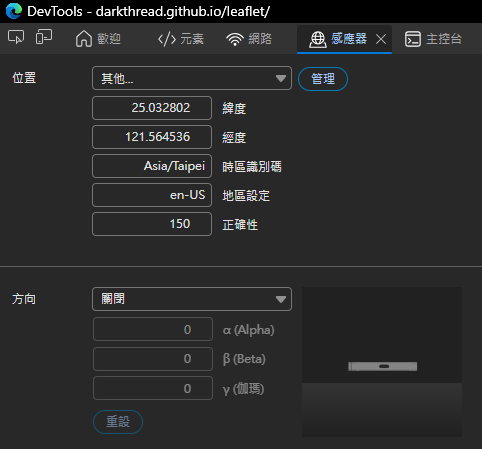
最後補上小發現,以前要在瀏覽器模擬不同 GPS 位置得裝擴充套件,現在的 Chrome/Edge 的 F12 開發者工具已經有內建囉~
Revisits web maps after 14 years, showing how to build a simple, API‑key‑free web map using Leaflet and OpenStreetMap. Demonstrates geolocation, markers, and interactions in under 150 lines of JavaScript, with a live demo for learning and reuse.
Comments
Be the first to post a comment